Radio
First rows consist of self managed Radio stations read from nextCP/2 configuration file. Next section displays radio stations provided by the active player. Click on the play symbol to play an online resource or radio station. Track and album information are updated if supported by the media renderer device.
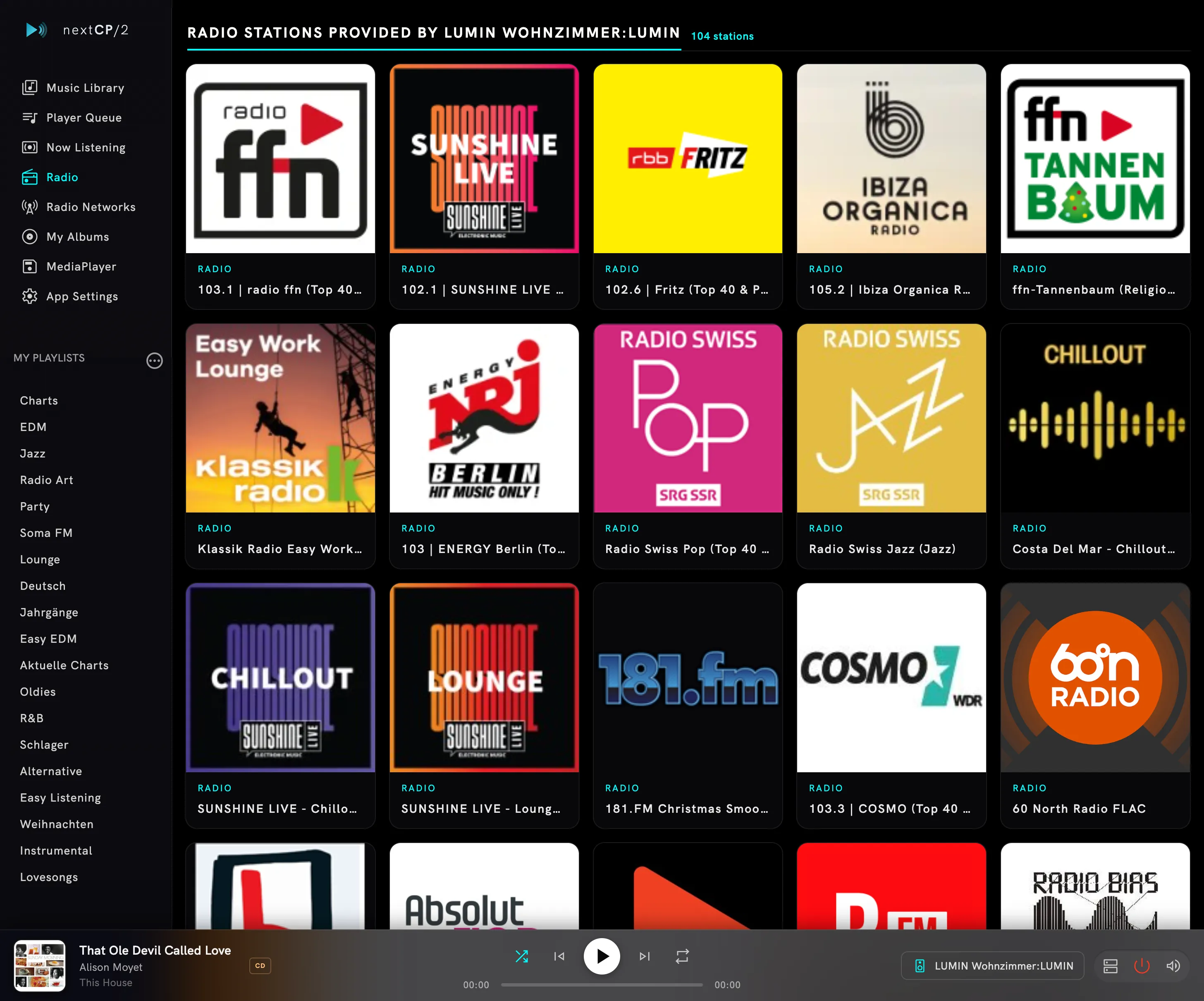
With This Device as the player, only your own stations are listed — the stations a hardware renderer offers belong to that device and cannot be played elsewhere.
Live titles
Section titled “Live titles”Stations announce the track they are playing as a line of text in the stream (ICY metadata). nextCP/2 shows it wherever the track is displayed — player bar, Now Listening, the listing itself — and it does so even if the renderer does not read that metadata itself: the media server listens to the stream and pushes every change to the UI. The station name moves to the album line so it stays visible.
Stations do not agree on what that line contains — most send Artist - Title, some send
Track - Station. If a station is consistently shown the wrong way round, pin the order in its
song options under Live title of this
station. The setting is stored with the station on the media server, so it applies to every renderer
and every browser.
Items of this kind also carry a Live badge and show the station’s genres instead of an album.
Stations stored on the media server
Section titled “Stations stored on the media server”Besides the two lists on this page, stations can live in a playlist on the media server, where they are browsed, played, liked and sorted like any other content.
To add one, open the folder options of a playlist and choose Add radio station. The dialog searches radio-browser.info — the search runs on the media server, so no account or extra configuration is needed on the nextCP/2 side:
- Type a station name, or filter by country, language and genre. Typing a genre also suggests matching tags with the number of stations behind them.
- The list shows every match with its country and stream quality. Picking one opens a second step where the entry gets its name — the names at radio-browser are user maintained and often a wall of keywords, so the proposal is shortened and can be changed to anything you like.
- add appends the station to the playlist you started from.
This requires UMS 16 or newer, which holds the radio-browser client.
Radio Networks
Section titled “Radio Networks”With UMS 16 or newer as media server, the sidebar carries a Radio Networks entry listing the stations of DI.fm, Radio Tunes, Jazz Radio and the other Audio Addict networks. They are browsed like the rest of the library, including genres and the live title of the station.
The subscription is entered once under Audio Addict Radio Network in App Settings. nextCP/2 hands the credentials to the media server, which streams the stations and reports what they are playing — see Preferred Media Server.