Docker
Docker installation
Section titled “Docker installation”The quickest way to install nextcp/2 is by using a Docker container. This guide assumes that Docker is already installed on your system. If not, please refer to the official Docker documentation for installation instructions.
The following example uses docker compose to set up nextcp/2 along with Universal Media Server (UMS) in a single command. While UMS 16 or newer is the recommended media server, you can also use any other DLNA-compatible media server, though with fewer features.
The ik6666/ums image is built from the UMS fork, where the features nextCP/2 relies on are developed before they are merged into UMS. It is therefore the build that matches the current nextCP/2 release most closely — an official UMS 16 image works as well, it may just lack the newest fixes.
Create a docker-compose.yml file in your project directory and add the following content:
services:  ums:    container_name: ums    network_mode: host    restart: unless-stopped#    user: '1009:1003'    volumes:      - [MEDIA_VOLUME]:/media/music      - ums_public:/profile    environment:      JAVA_TOOL_OPTIONS: '-Xms2048m -Xmx4096m -XX:+UseShenandoahGC -Xbootclasspath/a:/ums/web/react-client -Dums.profile.path=/profile -Dfile.encoding=UTF-8'    image: ik6666/ums:latest

  nextcp2:    container_name: nextcp2    network_mode: host          # required for UPnP/SSDP discovery on the LAN    restart: unless-stopped    volumes:      # Persistent data: config, database, logs/ and upnp_code/ live here (see NEXTCP_DATA)      - next_data:/nextcp2_data    environment:      TZ: Europe/Berlin         # container timezone (affects log timestamps)      JAVA_TOOL_OPTIONS: '-Xms1024m -Xmx2048m -XX:+UseShenandoahGC'    image: ghcr.io/sf666/nextcp2:latest
volumes:  ums_public:    external: true  next_data:    external: true
Replace [MEDIA_VOLUME] with the path to your media files on the host system. This will mount the media directory into the UMS container. For example, if your media files are located at /path/to/your/music, replace [MEDIA_VOLUME] with /path/to/your/music.
If you want the container to run under a specific user ID and group ID, make sure to uncomment and adjust the user property in the ums service section. The example uses 1009:1003, which you can change to match your system’s user and group IDs.
Create the external volumes ums_public and next_data if they do not exist yet. You can do this by running the following commands:
docker volume create ums_publicdocker volume create next_dataCheck if the volumes were created successfully:
docker volume lsThe docker volumes are used to persist data across container restarts. The ums_public volume is used by UMS to store its configuration and cache, while the next_data volume is used by nextcp/2 to store its data.
If you want to use a different volume name, make sure to update the docker-compose.yml file accordingly.
Data volume layout
Section titled “Data volume layout”nextCP/2 keeps all mutable state under the data directory /nextcp2_data (the next_data volume). On first start it generates a default configuration there and recreates the layout below; nothing is baked into the image, so a fresh pull of a newer image keeps your settings:
/nextcp2_data/├── nextcp2config.json # configuration (edit here or via the UI)├── nextcp2_db* # H2 database files├── logback.xml # logging config (LOG_DIR points at logs/)├── logs/ # rolling log files├── tmp/ # pre-transcode cache of the internal streaming proxy└── upnp_code/ # generated UPnP wrapper code (only if enabled)Because this lives in a named volume, the config, database and logs survive docker compose down / image updates. To inspect or hand-edit the config, either docker exec into the container or locate the volume with docker volume inspect next_data.
Environment variables
Section titled “Environment variables”The image is configured entirely through environment variables — no file needs to be baked in:
| Variable | Default (in image) | Purpose |
|---|---|---|
NEXTCP_DATA |
/nextcp2_data |
Data directory (config, database, logs, upnp_code). Authoritative: nextCP/2 reads and writes its config here. Mount a volume at this path to persist it. |
NEXTCP_LIB |
/nextcp2/lib |
Device-driver library directory. The bundled McIntosh MA9000/MA12000 driver is shipped here, and the generated config points libraryPath at it so the driver is found. |
NEXTCP_PORT |
8085 |
HTTP listen port used when the default config is first generated. Handy to avoid a port clash. Once a config exists, change the port there (embeddedServerPort) instead — this variable only seeds the initial value. |
NEXTCP_BIND_INTERFACE |
(auto-detected) | Network interface for UPnP discovery and the stream server (upnpBindInterface, e.g. eth0). If unset, the container auto-detects the Docker host’s primary interface on first start. Set it explicitly only if the wrong interface is picked (e.g. multiple NICs). |
TZ |
Europe/Berlin |
Container timezone; affects log timestamps. Set it to your own zone (e.g. America/New_York). |
JAVA_TOOL_OPTIONS |
-Xms1024m -Xmx2048m |
JVM options (heap, garbage collector, …). Override to tune memory or select a different GC as in the example above. |
Normally only TZ (and optionally JAVA_TOOL_OPTIONS) need changing. Set NEXTCP_PORT only if 8085 clashes or you run multiple instances. Leave NEXTCP_DATA and NEXTCP_LIB at their defaults unless you deliberately relocate those directories.
To start the containers, run the following command in the directory where your docker-compose.yml file is located:
docker-compose up -dTo stop the containers, run:
docker-compose downIf you prefer not to use UMS as your media server, you can either replace or remove the ums service from the docker-compose.yml file.
Initial Application Setup
Section titled “Initial Application Setup”NextCP/2 Configuration
Section titled “NextCP/2 Configuration”Once the containers are running, you can access the NextCP/2 web interface at http://localhost:8085 (or the IP address of your Docker host).
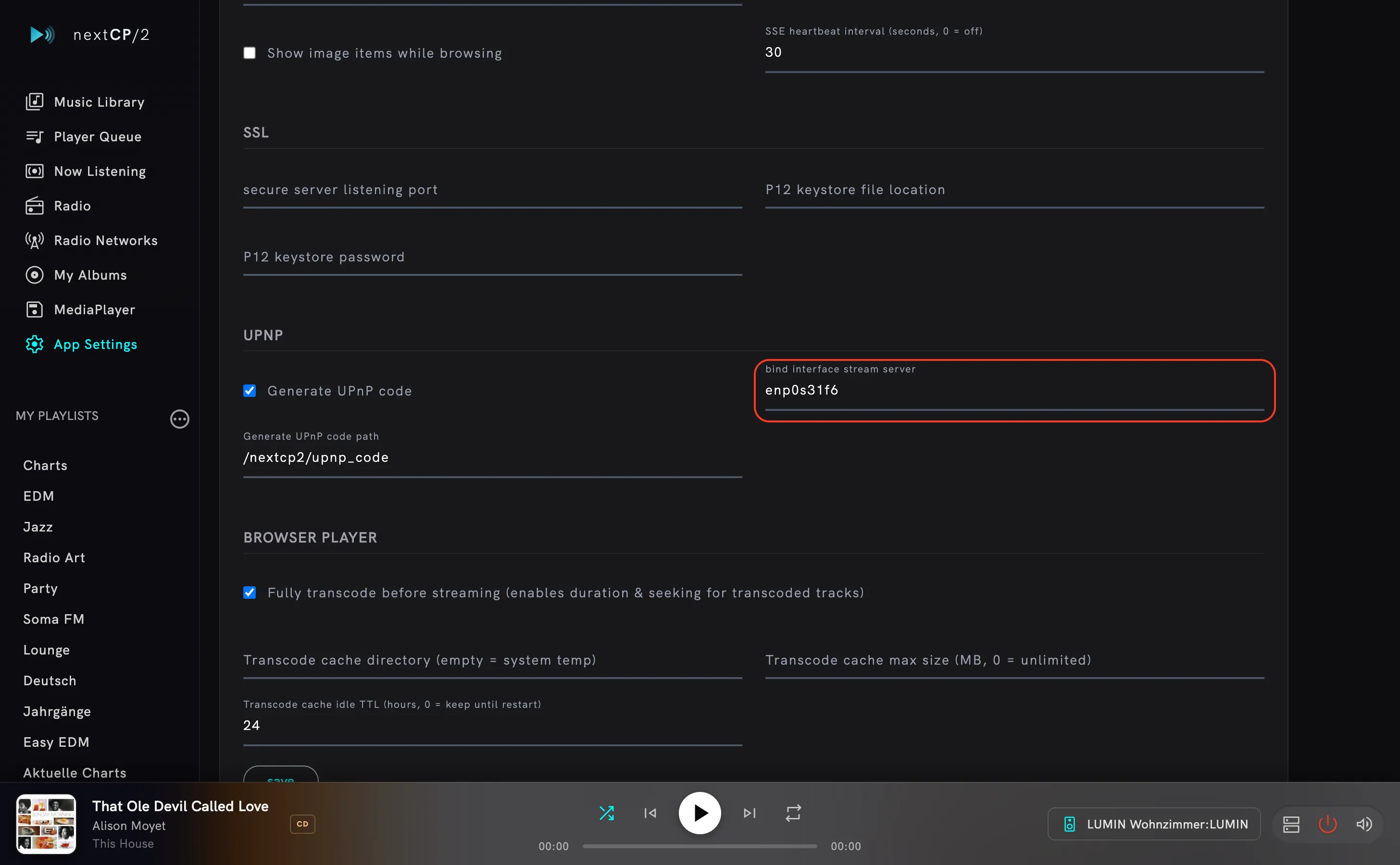
In the NextCP/2 web interface, navigate to the App Settings tab and scroll down to the General Configuration section.
nextCP/2 auto-detects the Docker host’s primary network interface on first start and sets Bind Interface Stream Server accordingly — usually no action is needed here. Verify it matches the interface you selected in the UMS configuration.
Only if the wrong interface was picked (e.g. the host has several NICs), correct it: set the NEXTCP_BIND_INTERFACE environment variable to the desired interface name and restart the container, or enter it in the Bind Interface Stream Server field and save.
UMS Configuration
Section titled “UMS Configuration”Due to certain issues with Docker container networking, it is necessary to adjust the UPnP network settings. Once the containers are running, you can access the UMS web interface at http://localhost:9001 (or the IP address of your Docker host).
In the UMS web interface, navigate to the Settings tab, then go to Server Configuration, and click on the first tab, General Configuration.
Ensure that the Display Extended Configuration checkbox is selected. This will enable the extended configuration options in UMS.
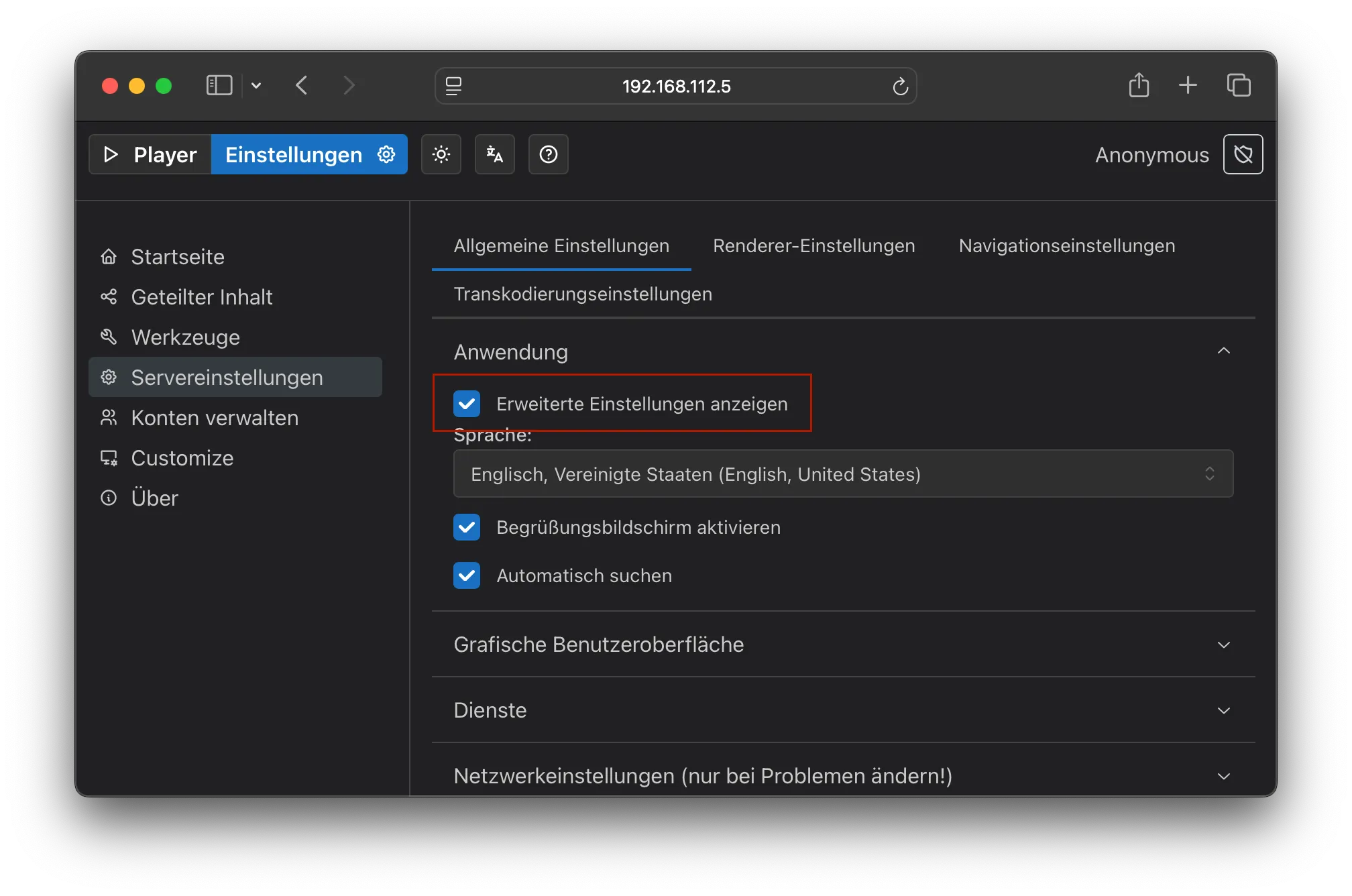
Next, click on Network Configuration. Use the Enforce Network Interface dropdown to select your Docker host’s network interface. This ensures that UMS uses the correct interface for UPnP discovery. Do not select any other interface.
In the example below, the host interface enp0s31f6 has been selected.
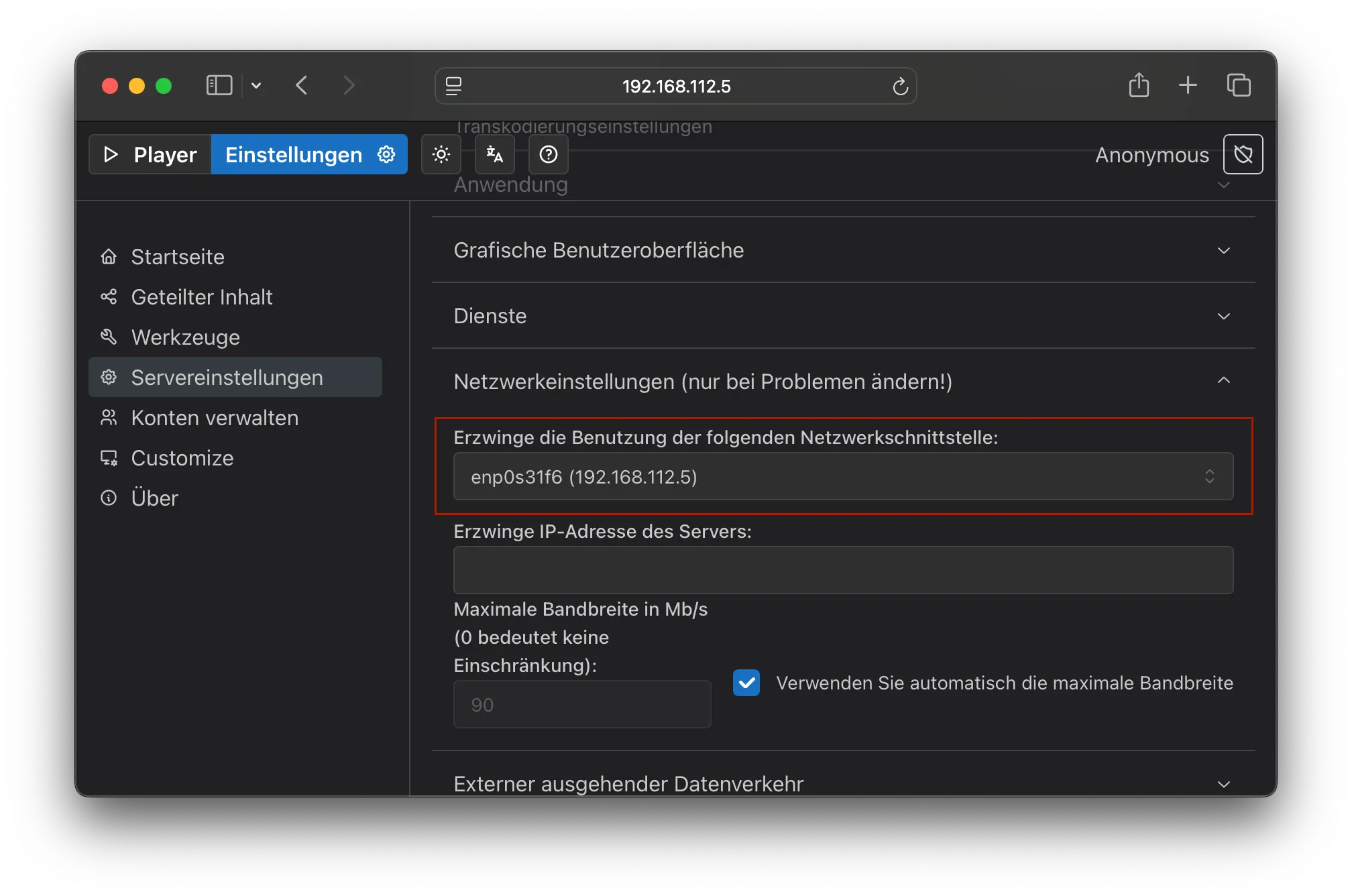
Save the configuration.
Get started
Section titled “Get started”Restart the application:
docker-compose downdocker-compose up -dYou can now start using NextCP/2 with UMS as your media server. To continue configuring the application, navigate to the App Settings tab.
Running behind a reverse proxy (Traefik)
Section titled “Running behind a reverse proxy (Traefik)”If you already operate a reverse proxy such as Traefik (for TLS termination, a single entry point, certificates, etc.), you can put the nextCP/2 web UI behind it. You do not need to start Traefik together with nextCP/2 — the steps below assume an existing proxy and only describe how to point it at the running container. A few details are specific to nextCP/2 because it is a UPnP control point.
Keep the container on the host network
Section titled “Keep the container on the host network”nextCP/2 must stay on network_mode: host. UPnP discovery (SSDP multicast), GENA event callbacks and the audio stream server all talk directly to renderers and media servers on your LAN, which does not work from a bridge network. The reverse proxy therefore only fronts the web UI on port 8085 (and, if you use it, the /mcp endpoint). UPnP and streaming traffic keeps flowing directly over the LAN and bypasses the proxy — leave the Bind Interface Stream Server setting pointing at your host interface as described above. Do not try to route the stream server through the proxy.
Trust the proxy’s forwarded headers
Section titled “Trust the proxy’s forwarded headers”The connection between the proxy and nextCP/2 is plain HTTP on port 8085 — you do not enable HTTPS or install certificates on the container itself. When TLS terminates at the proxy, nextCP/2 must honour the X-Forwarded-* headers so it reconstructs the correct external scheme and host for any absolute URLs (relevant e.g. for the /mcp endpoint); this is what conveys the original https scheme across the plain-HTTP hop to the backend.
Enable it either in the UI under App Settings → General Configuration → “Behind reverse proxy”, or directly in nextcp2Config.json:
{ "applicationConfig": { "behindReverseProxy": true }}The option is opt-in on purpose: only enable it when nextCP/2 is reachable solely through a trusted proxy — on a directly exposed port the X-Forwarded-* headers could be spoofed.
Use a dedicated (sub)domain — not a sub-path
Section titled “Use a dedicated (sub)domain — not a sub-path”Point your existing Traefik at port 8085
Section titled “Point your existing Traefik at port 8085”Because a host-network container has no dedicated container IP, Traefik’s Docker label provider cannot auto-discover it reliably. Use the file (dynamic) provider and point it at the LAN address of the Docker host on port 8085:
# Traefik dynamic configuration, e.g. /etc/traefik/dynamic/nextcp2.ymlhttp: routers: nextcp2: rule: "Host(`nextcp.example.com`)" entryPoints: [websecure] service: nextcp2 tls: certResolver: le services: nextcp2: loadBalancer: passHostHeader: true servers: # LAN IP of the Docker host running nextCP/2 - url: "http://192.168.1.10:8085"If Traefik runs as a bridge-network container on the same host, you can instead use http://host.docker.internal:8085 and add extra_hosts: ["host.docker.internal:host-gateway"] to the Traefik service. If your Traefik itself runs with network_mode: host, http://127.0.0.1:8085 works and label-based discovery is possible too.
Long-lived connections (SSE)
Section titled “Long-lived connections (SSE)”The UI receives live updates over Server-Sent Events (/SSE), and the optional MCP endpoint (/mcp) is a long-lived stream as well. To keep reverse proxies and load balancers from dropping these connections during quiet periods, nextCP/2 sends a periodic SSE heartbeat (every 30 s by default). You can change the interval — or disable it with 0 — in the UI under App Settings → General Configuration → “SSE heartbeat interval”, or via sseHeartbeatSeconds in nextcp2Config.json.
With the heartbeat active you normally don’t need to touch the proxy timeouts. Traefik also forwards text/event-stream responses immediately, so no buffering configuration is required (unlike nginx). If you still see streams being cut, raise or disable the responding idle timeout on the entry point as a fallback:
# Traefik static configuration (fallback only — usually unnecessary with the heartbeat)entryPoints: websecure: address: ":443" transport: respondingTimeouts: idleTimeout: 0 # do not cut off long-lived SSE / MCP streams