Music Library
The Music Library serves as the main entry point to your entire music collection, providing a central place to browse, search, and play your audio content.
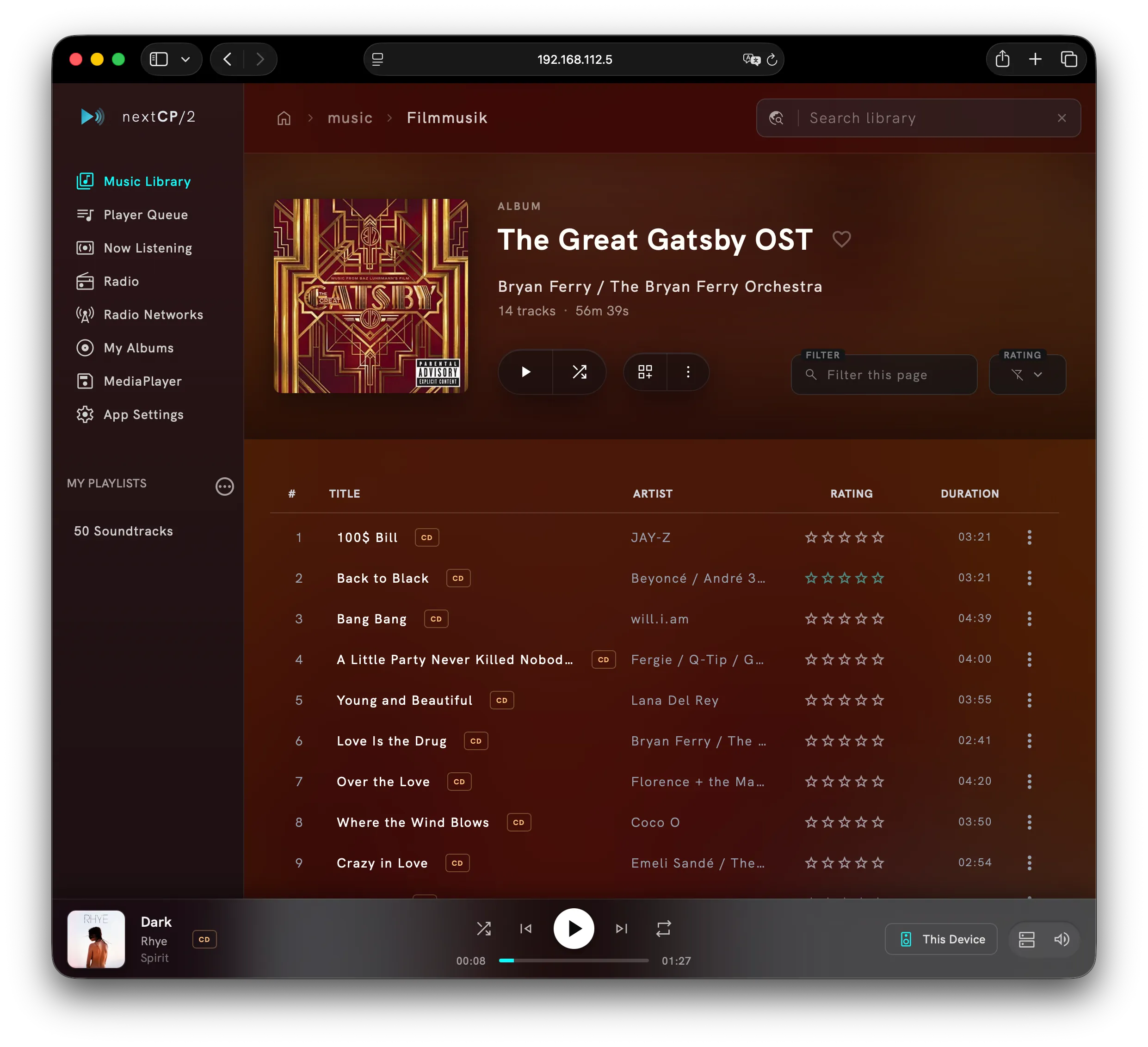
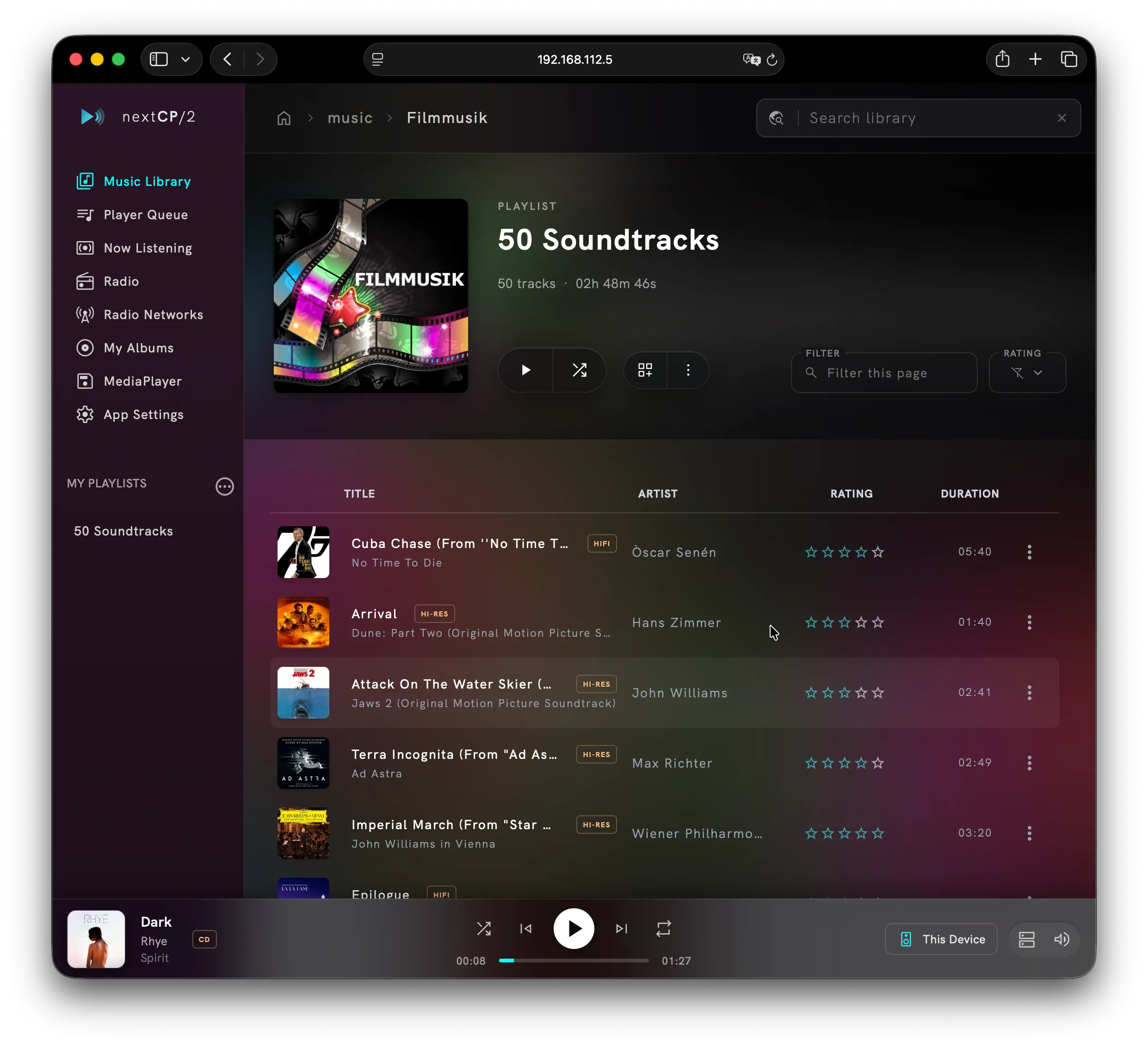
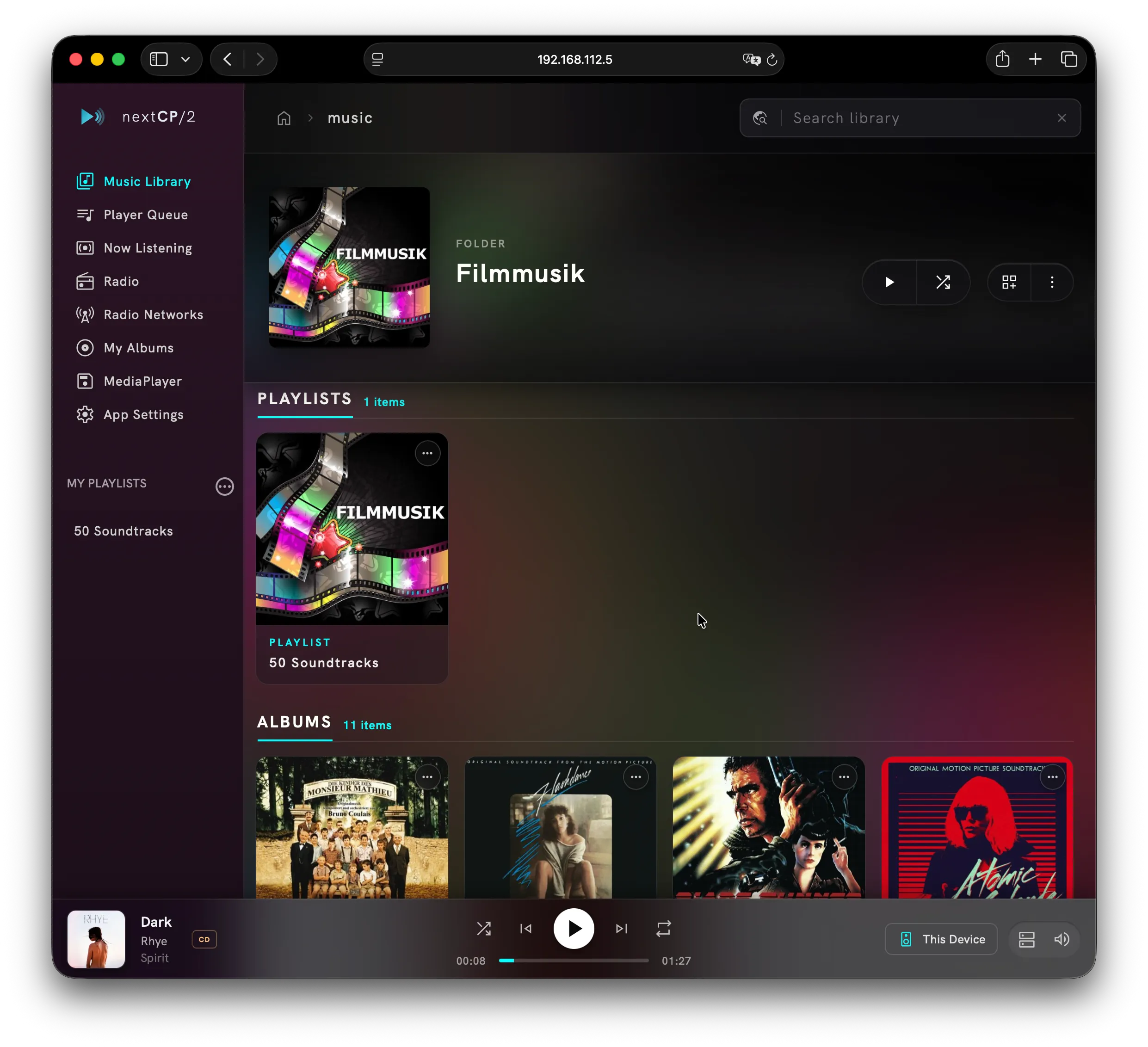
As you navigate through folders, the layout adapts based on the type of content being displayed. Folders are labeled with their names. Playlists, images, radio stations and videos are additionally highlighted for easier recognition — each kind gets its own section with its own heading and count.
You can also filter the displayed content by entering text into the Search in this page box.
A listing keeps itself up to date: if the media server reports a change — a file added to the folder, a cover that was just updated, a rating written from another browser — only the entries that actually changed are replaced, so the page does not jump while you are reading it.
Browse header
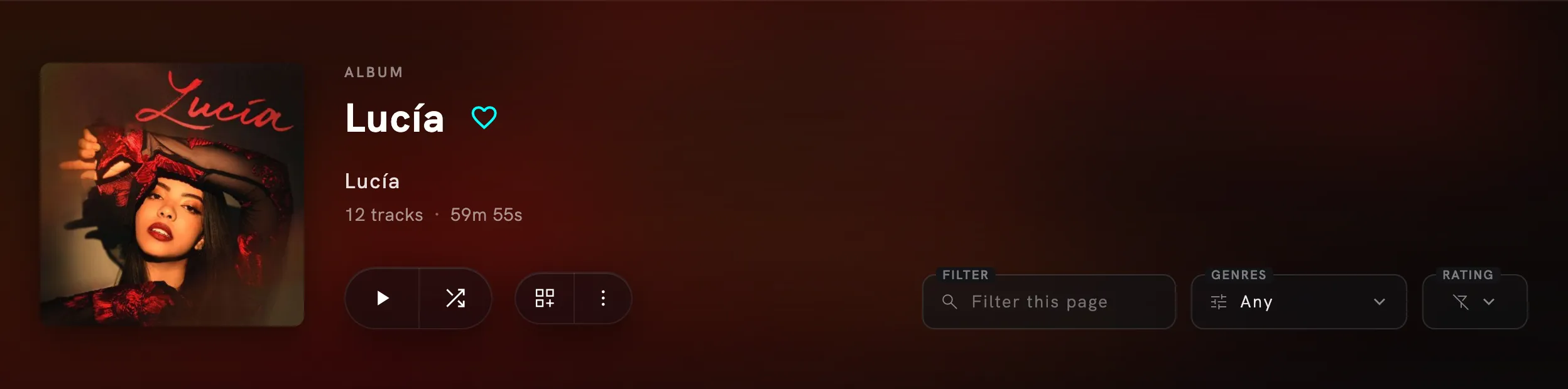
Section titled “Browse header”The header of every browse page carries the cover and title of the current container, the control buttons on the left and the filters on the right. Scrolling down collapses it into a slim sticky bar that keeps both groups reachable.
Control buttons
Section titled “Control buttons”| Button | Action |
|---|---|
| PLAY | Will clear the current renderer playlist, adds all tracks and start playback. |
| SHUFFLE | Clears the current renderer playlist, adds all tracks and start random playback. |
| SWITCH VIEW | Switches to a tiles based view. Pressing this button again will cycle back to a track based view. |
| OPTIONS | Folder Options |
The like button (heart) is not part of this bar — it sits next to the album title in the header and only appears if the album is identified by a MusicBrainz Release ID (all tracks must belong to the same release).
Folder options
Section titled “Folder options”OPTIONS opens the options of the container you are currently in. The very same menu belongs to every tile of a listing: click the more_horiz button on its cover, or press and hold the tile on a touch device — so a folder or playlist can be handled without entering it first. Only the rows that make sense for that container are shown.
| Entry | Action |
|---|---|
| Like folder / playlist | Marks the container with a heart, shown on its tile. A liked playlist appears under MY PLAYLISTS in the sidebar. Unliking clears the rating again. Requires a media server that stores ratings (UMS 16 or newer). |
| Add to playlist | Adds the tracks of this container to a server side playlist. |
| Update album art | Replaces the cover of this container with the image behind the URL you enter. The listing picks up the new cover right away. |
| Add radio station | Playlists only: searches radio-browser.info and appends the station you pick to this playlist — see Radio. |
| Set artist folder | Marks the current folder as the one holding your artist folders, so artist images are looked up there. Offered on folders that contain folders. |
| Select player playlist / folder | Only with the optional media player module: the playlist or folder it writes what it records into. |
Filters
Section titled “Filters”The right side of the header narrows down what the page shows. The filters apply to everything on the current page — folders, playlists, albums and tracks — and they are combined: an item has to pass all of them to stay visible. The section headings count what is left, and PLAY / SHUFFLE send exactly the tracks the filtered list shows, so a filtered page plays as it reads. A filter that is in use is highlighted; clicking the close icon resets it. Only the filters that make sense for the current page are displayed.
| Filter | Action |
|---|---|
| FILTER | Free text search across the titles of the current page (case insensitive, matches anywhere in the title). Nothing is requested from the server — only the displayed content is narrowed down. |
| GENRES | Multi select of the genres occurring on this page; an item is kept if it matches any of the selected ones. The button shows Any, the genre name, or how many genres are selected. Only shown if the content carries genre information. |
| RATING | Keeps only entries with exactly the chosen star rating: 5 (liked) down to 0 (disliked), or Any to switch the filter off. Requires a media server with the extended API (UMS 16 or newer). |
| SORT | Orders album tiles by Album Title, Album Artist or Genre; None keeps the order delivered by the media server. Appears only on pages that contain albums. |
Server Side Playlists
Section titled “Server Side Playlists”MY PLAYLISTS in the sidebar
Section titled “MY PLAYLISTS in the sidebar”The MY PLAYLISTS section of the sidebar lists the playlists you have liked, wherever they are stored on the media server. There is no playlist folder to configure any more: nextCP/2 asks the media server for every playlist rated as liked, so a playlist appears no matter which directory it lives in.
To put a playlist there, open its folder options — the more_horiz button on its tile, or the three dots in the header once you are inside it — and choose Like playlist. Unlike playlist takes it out of the sidebar again; the playlist file itself is not touched.
This requires a media server that accepts the rating as a search criterion — upnp:rating in its
search capabilities. That is more than plain UPnP search: a server may answer searches and still not
know about ratings, and then the section stays empty although the search box works. UMS 16 or newer
offers it. The device details dialog shows what your server can be searched on, see
Device details.
Create Server Side Playlist
Section titled “Create Server Side Playlist”To create a server-side playlist, first navigate to the folder where you want the playlist to reside. Next, click the three-dot menu located next to MY PLAYLISTS. A dialog box will appear where you can enter the name for your new playlist and confirm your choice.
If you create the playlist inside the configured MY PLAYLISTS folder, it will automatically appear in the Quick Access sidebar.
Add songs to Server Side Playlist
Section titled “Add songs to Server Side Playlist”To add a song to a server side playlist, navigate to the desired song, click on the three dots to open the song options dialog, then select Add to playlist and select the desired playlist.
Delete Server Side Playlist
Section titled “Delete Server Side Playlist”Click the three-dot menu next to MY PLAYLISTS to open the options dialog. Switch to delete playlist, locate the playlist you want to remove (the search field narrows the list down) and click delete. Deleting a playlist on the media server cannot be undone, so it has to be confirmed once more.
Example usage
Section titled “Example usage”The animation shows how to create a new playlist. After creating it, two songs are added, one of them is removed again, and finally the playlist itself is deleted. To keep a playlist within reach, like it — it then shows up under MY PLAYLISTS in the sidebar.
View templates
Section titled “View templates”Album View
Section titled “Album View”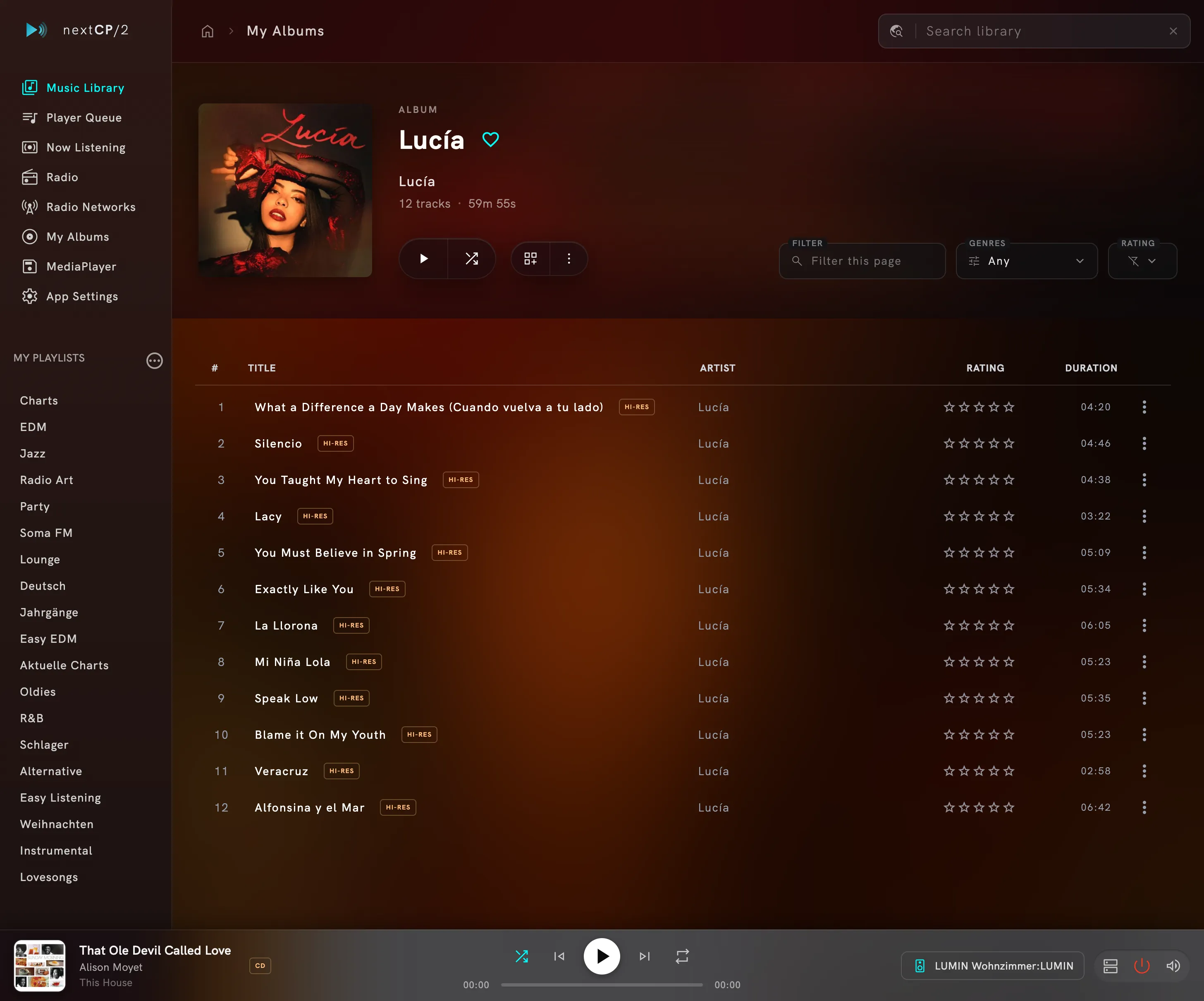
When browsing a container that contains only tracks from the same album, the interface switches to a track-based display.
Clicking on a track title will immediately play that track rather than adding it to the current playlist.
If the album is identified by a MusicBrainz Release ID, the like/dislike feature (heart icon) becomes available. Albums you mark as liked can then be quickly accessed from the My Albums section in the sidebar.
Songs can be rated from 1 to 5 stars by clicking on the desired star icon. If a MusicBrainz user account is configured in the App Settings, your ratings can be submitted directly to MusicBrainz.org.
Multi Disc Support
Section titled “Multi Disc Support”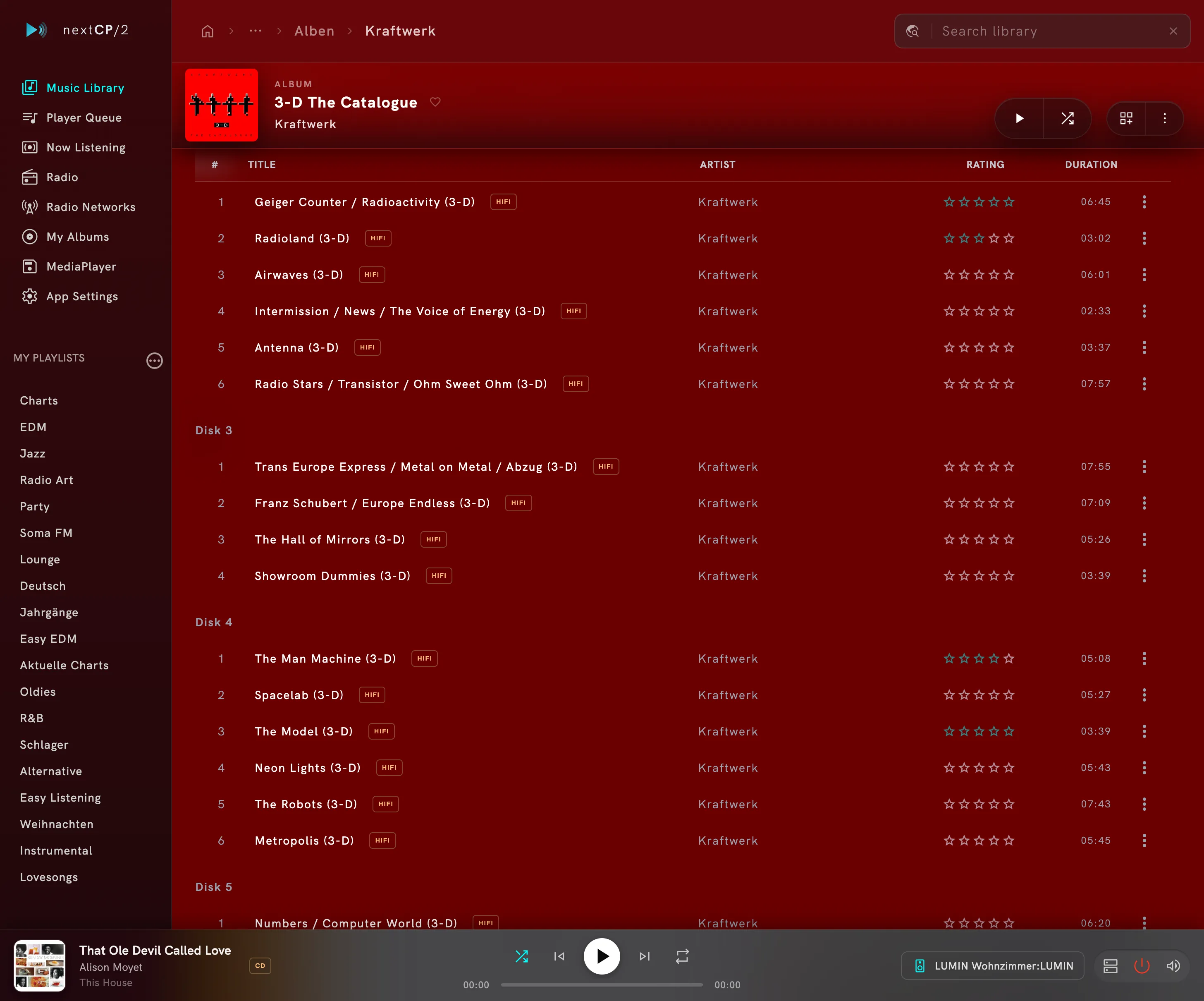
To manage a multi-disc release, copy all audio files into a single folder. If the tracks are tagged with the correct numberOfThisDisc ID3 metadata, the songs will be automatically sorted first by disc number and then by track ID.
Playlist view
Section titled “Playlist view”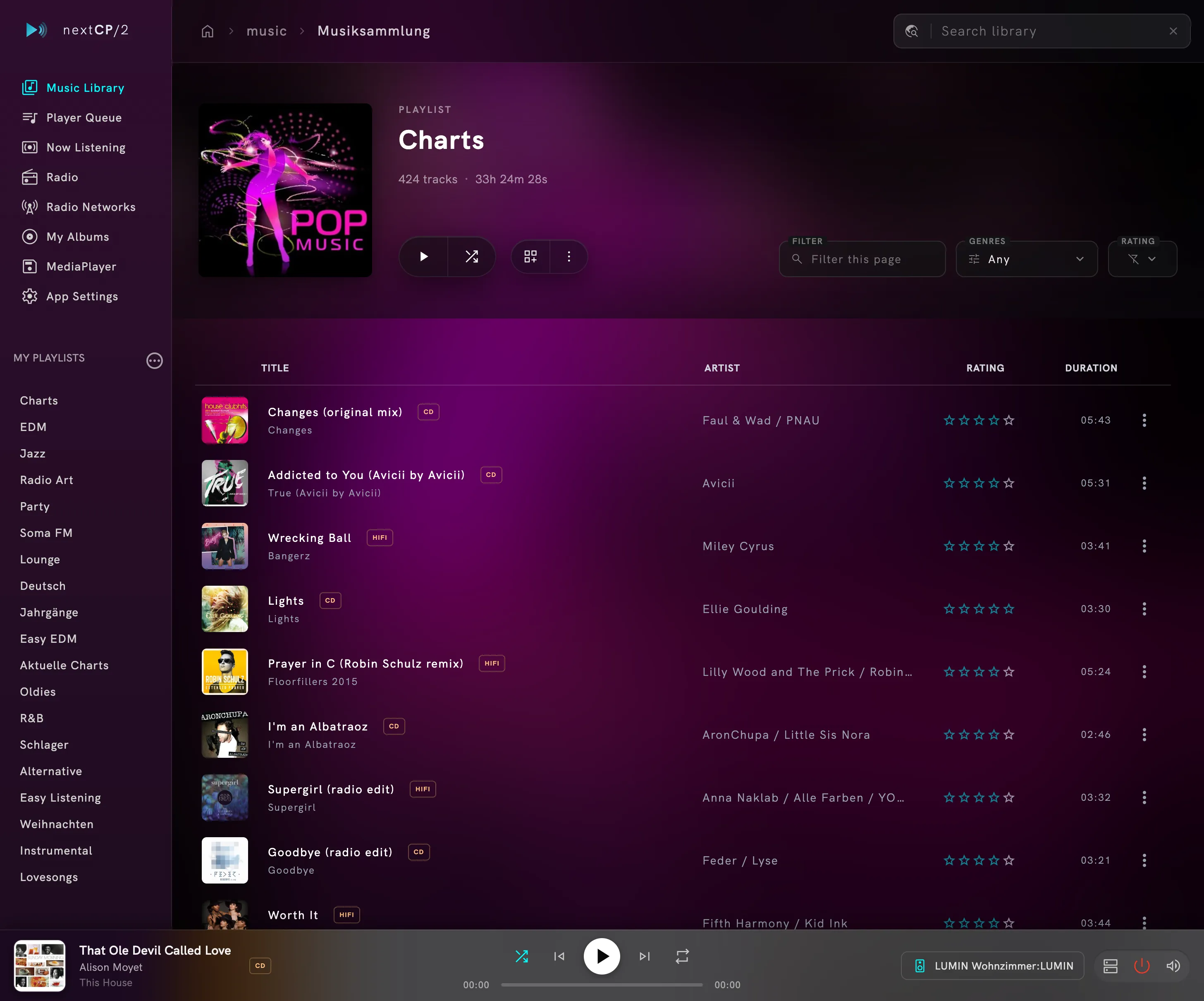
When browsing server-based playlists, the display automatically switches to a track view with small album covers. Clicking Switch View will change the display to a full-sized album view.
Videos
Section titled “Videos”Video items are listed in a Videos section of their own. Clicking one hands it to the selected player: a UPnP renderer that can show video plays it, and with This Device selected it opens in a full screen player inside the browser tab — see Video in the browser.
Song Options
Section titled “Song Options”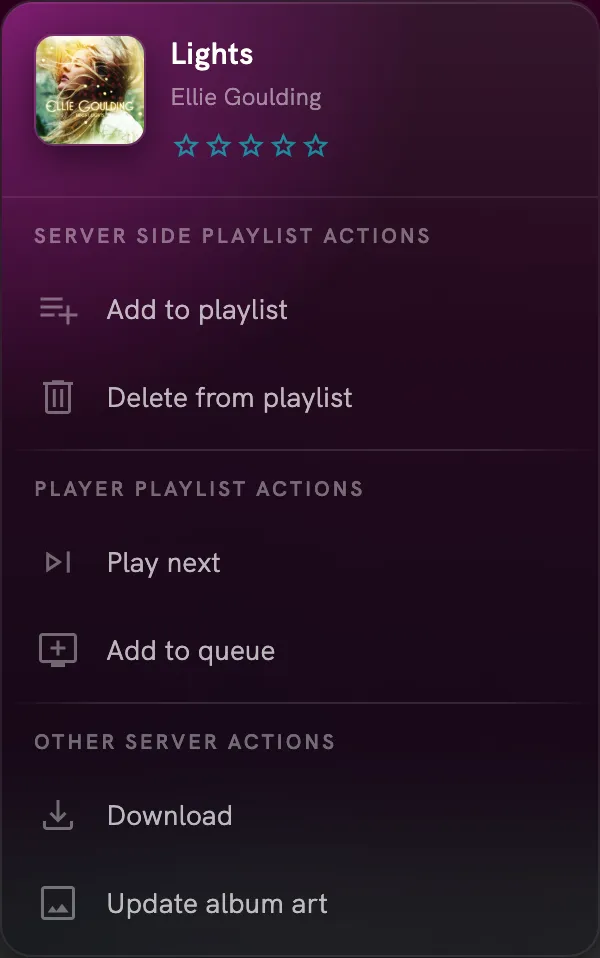
Clicking the three-dot menu next to a song opens the Song Options dialog. Where you can choose between server side actions and media player actions.
Server side playlist actions
- Add to playlist
- Delete from playlist
Both actions will be executed on the server side, so the changes will be reflected in the playlist file itself. The playlist has to be a m3u or m3u8 file.
Removing songs can only be done, if the current view displays a playlist file.
Player playlist actions
- Play next
- Add to queue
When the current media player is in playlist mode, selecting Play next will add the song to the playback queue in the next position, while Add to queue will place the song at the end of the current renderer playlist. If the media player is not in playlist mode, the selected song will play immediately, regardless of which action is chosen.
Other server actions
- Download
- Update album art
You can download a resource, or Update album art on the server side.
Live title of this station
- Detect automatically
- Artist – Title
- Title – Station
Web radio entries carry one more group. Stations announce the running track as a single line of text
(ICY metadata), and they do not agree on what that line contains: most send Artist - Title, some
send Track - Station. Detect automatically lets the media server guess; if a station is
consistently shown the wrong way round, pin the order here. The setting belongs to the station and is
stored with it on the media server, so it applies to every renderer and every browser.
UPnP Search
Section titled “UPnP Search”If the selected media server supports UPnP search, entering text into the Global Search box will initiate a server-side search request.
Known media servers with compatible UPnP search capabilities include MinimServer and Universal Media Server (since 10.6.0). The search text is matched against tracks, albums, playlists, and artists. Artist covers are retrieved from Spotify if a connected account is available.
Searching and searching on ratings are two different capabilities: the MY PLAYLISTS section needs the second one and stays empty without it, even on a server whose global search works. See What depends on the media server.
Clicking on a song item will play that song immediately. Clicking on any other item will navigate into that content.
The dropdown shows the first hits per kind. show all (N) next to a group turns the query into a full result page — a page like any other browse page, with the same control buttons and filters, so the hits can be played, shuffled, sorted or narrowed down further. The result page carries a bar with every kind of hit the query has (Albums, Tracks, Artists, Playlists) and their counts, so switching from albums to tracks is one click instead of searching again.