App Settings
Server Configuration
Section titled “Server Configuration”Displays a card view of the detected media server.
OFFLINE if not yet discovered on the network; active servers are ONLINE. Read only.The sidebar’s MY PLAYLISTS section has no setting here any more: it lists the playlists you liked, wherever they are stored — see Music Library.
Renderer configuration
Section titled “Renderer configuration”Displays a card view of the detected media renderers. Offline renderers may appear if not yet discovered; disabled renderers are excluded from selection lists.
Device driver
Section titled “Device driver”A device driver lets nextCP/2 control the device your streamer feeds its audio into — typically an integrated amplifier — and take over its power, volume and balance from the UI. These are hardware functions of the amplifier that UPnP alone cannot reach.
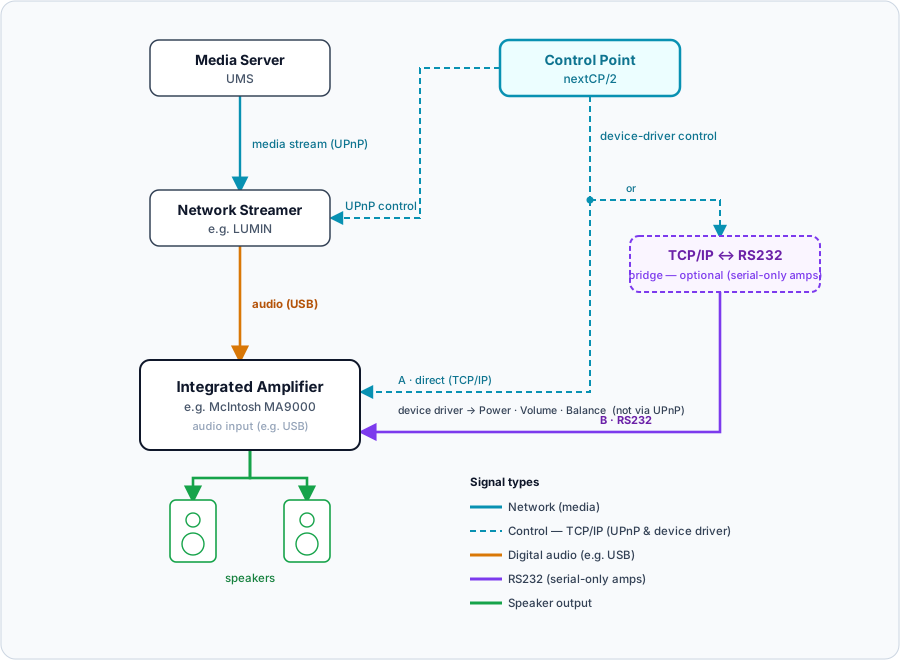
Typical setup. A network streamer (e.g. a LUMIN) is connected to an input of the amplifier (e.g. a McIntosh MA9000) — for example over USB — and feeds it the audio; the amplifier drives the speakers.
How nextCP/2 reaches the amplifier depends on the device:
- Network-controllable amplifiers are driven directly over TCP/IP.
- Serial-only amplifiers that offer just RS232 need a small, optional TCP/IP ↔ RS232 bridge that puts the serial port on the network (see the README for a tested adapter such as the USR-TCP232-302). The bundled McIntosh MA9000/MA12000 driver uses this path.
What changes once a device driver is configured:
- The volume slider in the UI now controls the amplifier instead of the streamer — the audiophile path, where the volume is done in the amp.
- The power button in the UI likewise targets the amplifier.
- Optionally, the streamer is forced to 100 % (no attenuation, so it no longer controls the volume) via the UPnP/streamer max volume option — only the amplifier then changes the level.
- Default volume and balance can be applied automatically when the amplifier is powered on.
The driver is picked on the renderer’s card; the tune button next to it opens its settings in a dialog of their own. A renderer whose driver is not configured yet says so on the card.
MA9000 for McIntosh amplifiers.host:port) to the amplifier or, for serial-only amps, to the RS232 bridge — e.g. 192.168.112.37:12345.10.-3.Device details
Section titled “Device details”Every media server and media renderer can be asked what it is and what it can do: the info button next to a device in the server and renderer selection popups, or details on its card here in the settings.
The capabilities are read from what a device announces, not from its version, so a server that is one release behind, a build with a feature switched off and a development build that is ahead of both each answer for themselves. What each capability enables is listed under What depends on the media server.
Server Actions
Section titled “Server Actions”Additional UMS server actions, available when the active media server is a UMS instance.
App Behavior
Section titled “App Behavior”General Configuration
Section titled “General Configuration”X-Forwarded-* headers so nextCP/2 reconstructs the correct external scheme and host when TLS terminates at a proxy. Enable only when nextCP/2 is reachable solely through a trusted proxy — see running behind a reverse proxy. Default: off./SSE and /mcp streams. Set 0 to disable. Default: 30.true, JUPnP access wrappers are generated for discovered UPnP services.Automatic (default) streams lossless where the browser can decode it and transcodes where it cannot; Always lossless never transcodes; Always transcoded always does, which saves bandwidth. When automatic has fallen back to transcoded audio — no FLAC support in this browser, or a failed playback — a note below the field says so and offers to try lossless again.0 for unlimited.0 to keep entries until the next restart.Audio Addict Radio Network
Section titled “Audio Addict Radio Network”Credentials of a paid Audio Addict subscription (DI.fm, Radio Tunes, Jazz Radio, …). nextCP/2 does not stream these networks itself — it passes the account on to the media server, which then offers their stations under Radio Networks in the sidebar.
AI Configuration
Section titled “AI Configuration”Configures the built-in AI chat assistant. Changes are applied immediately after saving — no restart is required. For provider setup examples (Google Gemini, OpenWebUI) and troubleshooting, see AI Configuration.
google (Gemini) or openai (OpenAI and OpenAI-compatible endpoints like OpenWebUI). Switching providers saves the current settings to a per-provider profile and restores the settings last used with the newly selected provider.http://localhost:3000/api for OpenWebUI./v1 or /chat/completions — these are added automatically.* to use all tools registered on the endpoint.Accounts
Section titled “Accounts”Spotify
Section titled “Spotify”Connect your Spotify account to enable discovery of artist album art. If the browser is connected to localhost, a one-step linking process is available. Otherwise the authCode must be copied manually into the provided code block.
MusicBrainz
Section titled “MusicBrainz”Username and password of your musicbrainz.org account. With it, star ratings of tracks carrying a MusicBrainz Track ID can be written to that account, and import rating from musicBrainz.org under Server Actions reads them back.
Last.fm
Section titled “Last.fm”The account can be connected, but the API is not used yet.
System Information
Section titled “System Information”Build information is displayed here.