Player Bar
The player bar sits at the bottom of every page. It shows what is currently playing, controls playback and selects where the music is played — the media renderer, the media server, power and volume.

Now playing
Section titled “Now playing”The left part shows the track currently playing on the selected player.
- Cover — click it to open the song options dialog for the playing track (rate it, add it to a playlist, show details). Available only for tracks coming from a media server.
- Title, artist and album of the current track.
- Quality badge — derived from the audio format:
CDfor 16 bit / 44.1 kHz,HIFIfor more than 16 bit at 44.1 kHz andHi-Resfor sample rates above 44.1 kHz. Compressed material (up to 320 kbit/s) gets no badge.
Transport controls
Section titled “Transport controls”The middle part drives playback. Buttons a player does not support are shown greyed out.
- shuffle Shuffle — plays the queue in random order. The button is highlighted while shuffle is active.
- skip_previous Previous — jumps to the previous track of the queue.
- play_arrow / pause Play / Pause — the large center button; it reflects the current transport state.
- skip_next Next — jumps to the next track.
- repeat Repeat — restarts the queue after the last track. The button is highlighted while repeat is active.
Below the buttons, the elapsed time, a seek slider and the track length are displayed. Drag the slider to seek within the track. Continuous streams such as radio have no known length — the slider is then inactive and no track length is shown.
Output controls
Section titled “Output controls”The right part selects the devices used and controls the amplifier.
- Renderer — the pill showing the name of the active player (on narrow screens just the speaker icon). It opens the list of available media renderers; the entry marked with check is the current one. Disabled renderers (see App Settings) are not listed.
- dns Media server — selects the media server whose library is browsed. Servers with the Extended API of UMS 16 are marked accordingly.
- power_settings_new Power — switches the amplifier on or off. Shown only if a device driver is configured for the selected renderer. A green icon means the device is on, a red one that it is in standby.
- volume_up Volume — opens a vertical volume slider with buttons for louder and quieter and a numeric readout. The slider is scaled logarithmically, so small values can be set precisely. If a device driver is configured, the volume is applied to the amplifier instead of the streamer.
Playing in the browser — This Device
Section titled “Playing in the browser — This Device”Besides your external UPnP media renderers, the renderer list contains This Device as its first entry. Selecting it plays the music directly in the browser you are currently using — the tab you are viewing becomes the player. This is handy for listening on a laptop, tablet or phone (or through headphones) without any dedicated streaming hardware. The player bar then shows This Device, and the selection is remembered for this browser.
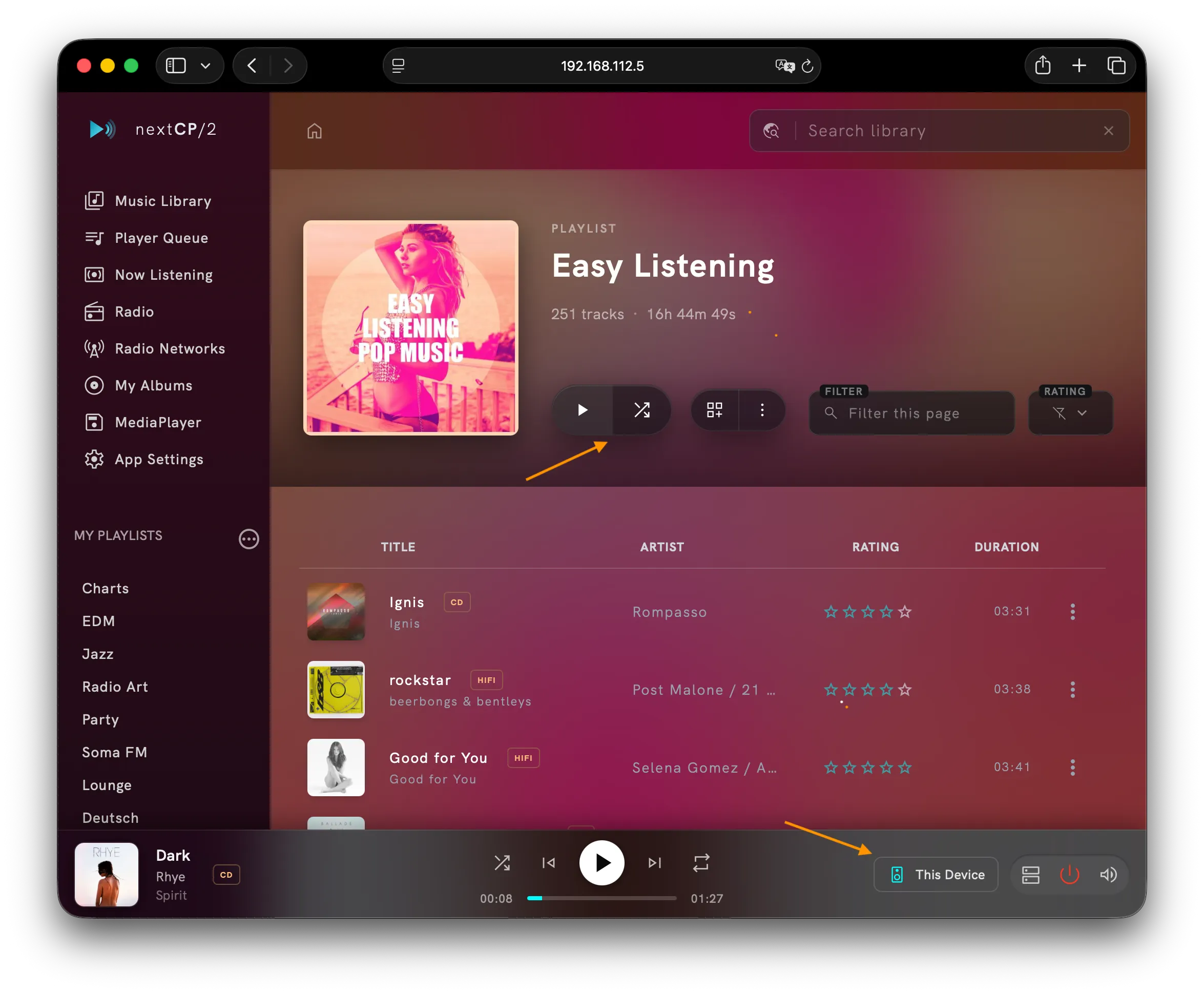
Playback is started exactly as with a hardware renderer:
- The play_arrow and shuffle buttons on an album, playlist or folder page queue all tracks of that page in the browser — shuffled if you use the shuffle button.
- Clicking a single track starts with that track and continues with the remaining tracks of the displayed list.
- All transport controls of the player bar — play/pause, previous/next, seek, repeat, shuffle and volume — control the browser player.
- Radio stations and web streams work as well: the browser simply fetches the stream URL, and the live title the station announces is shown just as on a hardware renderer — see Radio.
- Queue and playback position are stored in the browser, so a page reload resumes where playback left off.
Differences to a UPnP renderer:
- The queue is local to the browser. There is no server-side (OpenHome) playlist, so the Media Player Queue page and the server playlist functions do not apply to This Device.
- The Radio page shows only your own stations from the nextCP/2 configuration; stations offered by a renderer are not available.
- Volume and mute affect this browser tab only, not any hardware device.
- Playback ends when the tab is closed. Every browser has its own independent player, so several devices can play different music at the same time.
Formats and transcoding
Section titled “Formats and transcoding”Audio is not fetched from the media server directly, but through a proxy endpoint of the nextCP/2 backend. This avoids
CORS and mixed-content problems when the UI is served over HTTPS, and it lets the media server apply a browser specific
renderer profile: the proxy identifies itself with the user agent next_cp_webplayer/1.0 (in UMS, a renderer profile
matching UserAgentSearch = next_cp_webplayer). Formats the browser can play are passed through untouched, everything
else is transcoded to MP3 by the media server.
Which of the two happens is decided by Audio format for the browser player in the Browser Player section of App Settings:
- Automatic (default) streams lossless where the browser can decode it and falls back to transcoded audio where it cannot — a browser without FLAC support, or one whose playback failed. App Settings says when automatic has switched over and offers to try lossless again.
- Always lossless never transcodes.
- Always transcoded always does, which is the setting for a slow or metered connection.
Because a transcoded stream is delivered without a known length, the browser can neither show the duration nor seek in it. nextCP/2 therefore transcodes such a track completely before playback starts and caches the result — the first play pays the transcoding delay, later plays and seeks are served from the cache. Pre-transcoding, cache directory, cache size and cache lifetime are configured in the Browser Player section of App Settings.
Video in the browser
Section titled “Video in the browser”This Device also plays video. A folder containing video files lists them in a Videos section of its own (see Music Library); clicking one opens a full screen player over the UI. Esc or the close button ends it, and the audio queue is left alone — video is not queued, one item plays at a time.
The stream is delivered as HLS through the same proxy, which is what makes seeking in a video the
media server transcodes on the fly possible. Safari plays HLS itself, every other browser through the
bundled hls.js. Asking for that rendition relies on the way UMS names its transcoded streams, so
video in the browser needs UMS (version 16 or newer) as media server.